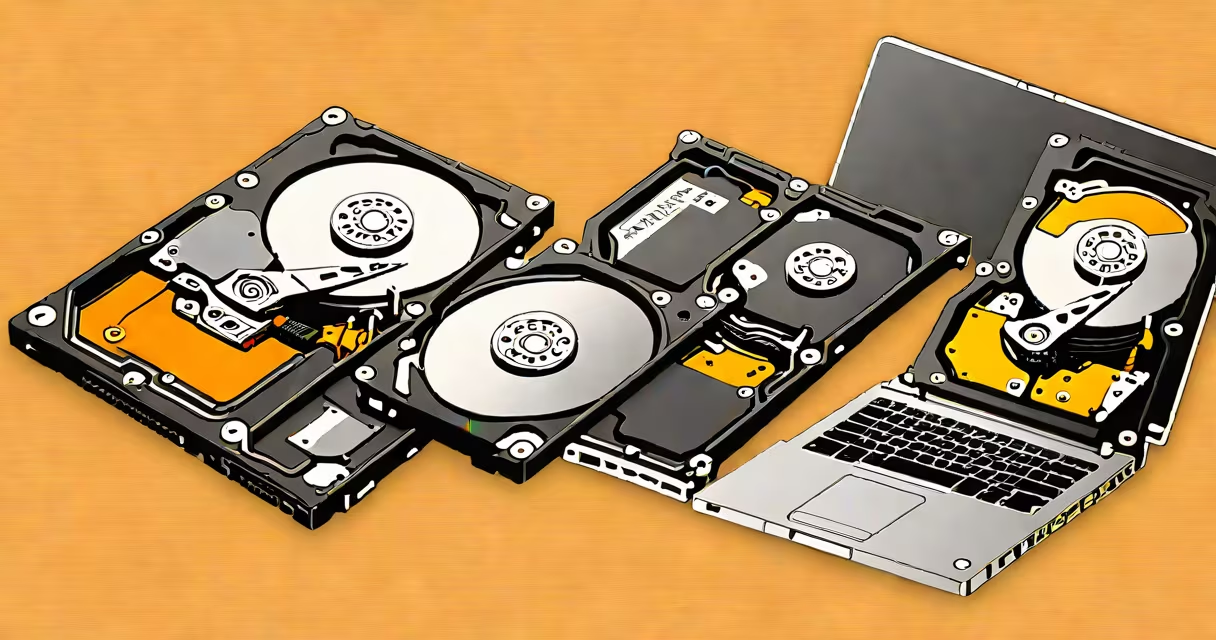
The best hdd cloning software free creates bit-for-bit copies of entire hard drives or SSDs without requiring paid licenses or complex setup. These tools replicate every sector, including boot records, partitions, and hidden system files, ensuring a working duplicate usable for backup, migration, or disaster recovery.
Cloning differs from standard file copying. While file copy moves documents, photos, and folders, cloning duplicates every byte-system files, registry entries, and even unused space. This makes cloned drives bootable immediately on compatible hardware. The process takes minutes to hours depending on drive size and speed.
Top free options support both NTFS and APFS formats, work with SATA, NVMe, and USB external drives, and handle drives larger than 2TB. They run natively on Windows 10/11 and macOS Ventura or later. No internet connection is required during cloning.
Cloning software reads data from a source drive in sequential blocks. It writes each block to the destination drive in the same physical location. This preserves partition tables, boot sectors, and file system metadata. The result is a functional mirror of the original.
For example, if you clone a 1TB Windows 11 drive containing a dual-boot setup with Linux, the cloned drive boots identically. All applications, settings, and user profiles remain intact. You can replace the old drive with the new one and start the system without reinstalling.
Some tools offer advanced features like sector-by-sector cloning (copies every sector, even empty ones), which ensures the destination drive matches the source's physical layout. Others use intelligent algorithms to skip unallocated space, reducing time and storage usage.
Three main categories exist: full-disk replicators, partition-specific cloners, and disk imaging utilities. Full-disk tools copy entire drives. Partition cloners focus on selected volumes. Imaging tools save a compressed file version of the drive for later restoration.
| Type | Best For | Free Tool Example | Limitations |
|---|---|---|---|
| Full-disk replicator | Migrating OS to new SSD, replacing failing drive | Macrium Reflect Free | Only clones to same or larger drive; no network restore |
| Partition cloner | Copying only the OS partition to a smaller drive | Clonezilla Live (command-line) | Requires technical knowledge; no GUI by default |
| Imaging utility | Creating backups for long-term storage or cloud sync | Macrium Reflect Free (with image export) | Cannot boot from image unless restored via live environment |
Macrium Reflect Free supports both Windows and Linux systems. It allows cloning between different drive types-e.g., moving from a 5400 RPM SATA drive to a 7200 RPM model or an NVMe SSD. The tool detects drive health status and warns if the source drive shows signs of failure.
Clonezilla Live runs from a bootable USB. It's ideal for enterprise environments needing batch cloning of multiple machines. It uses rsync-like algorithms to minimize transfer time. However, users must manually select partitions and confirm overwrite prompts-no guided wizard.
Many assume cloning requires a separate backup drive. Not true. You can clone a drive to another internal drive, an external USB enclosure, or a networked NAS. The key requirement is that the destination must be equal or larger in capacity.
Another misconception: cloning always takes longer than copying files. This is false. Cloning tools read and write data at raw sector level, bypassing file system overhead. A 1TB drive can clone in under 90 minutes using a USB 3.0 connection and a fast SSD.
A critical distinction: cloning ≠ backing up. Backups store changes over time and allow versioning. Clones are static snapshots. If malware infects the source, the clone inherits the infection. Always verify the clone on a clean machine before deployment.
One non-obvious fact: some free tools limit cloning to single drives. Macrium Reflect Free, for instance, doesn't support RAID arrays or changing disks. Attempting to clone such a configuration results in a failed operation. Users must convert changing disks to basic before proceeding.
I replaced my aging 500GB HDD with a 1TB SSD using Macrium Reflect Free. The source drive ran Windows 10 with 320GB used. I connected the SSD via USB-to-SATA adapter and launched the software.
Step 1: Select the source drive (C:\) and destination (USB-connected SSD).
Step 2: Choose "Clone" mode, then "Sector-by-sector" to preserve all data, including deleted file remnants.
Step 3: Confirm the operation. The tool estimated 1 hour 22 minutes based on 140MB/s transfer rate.
After completion, I disconnected the old drive, installed the SSD in the laptop, and booted. Windows loaded normally. All apps, settings, and user accounts were preserved.
This saved me 4 hours of reinstallation, driver updates, and software reconfiguration. The clone was bootable on first try.
Never clone to a drive with existing data unless you've backed it up. Overwrite operations are irreversible. Even if the software warns, human error occurs. Always double-check source and destination selections.
Avoid tools that require registration or collect telemetry. Some free versions install bundled software or redirect to promotional pages. Stick to well-documented tools with public repositories and community forums.
Always test the clone on a secondary machine before relying on it for production use. Boot into the cloned drive and verify system stability. Check for missing drivers, incorrect time zones, or corrupted services.
Free hdd cloning software delivers professional-grade functionality at no cost. The best tools combine reliability, compatibility, and simplicity. Choose based on your hardware, OS, and workflow needs-not marketing claims.