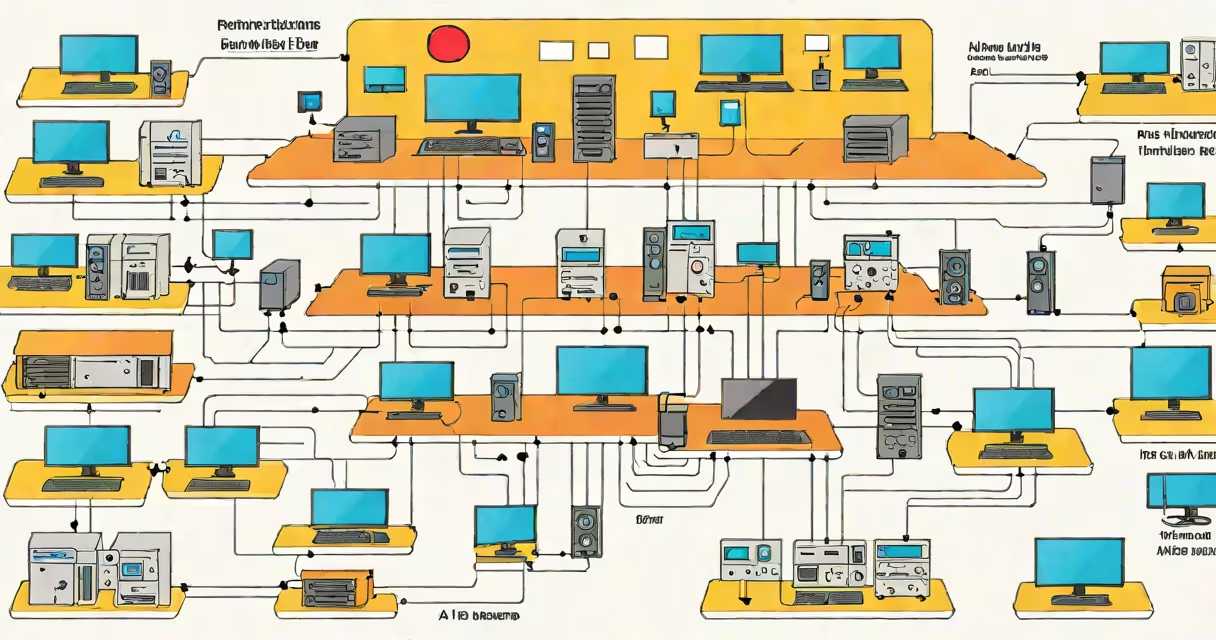
An IP address identifies a device on a network, enabling communication between systems. It serves as a unique identifier for routing data across local networks and the internet.
Every device connected to a network-routers, phones, laptops, servers-has one or more IP addresses assigned by a network administrator or automatically via DHCP. These addresses allow devices to send and receive data packets. Without them, digital communication would fail.
IP addresses come in two versions: IPv4 (e.g., 192.168.1.1) and IPv6 (e.g., 2001:0db8:85a3::8a2e:0370:7334). IPv4 remains dominant due to widespread adoption, though IPv6 is expanding to resolve address exhaustion.
Data travels across networks in small units called packets. Each packet contains source and destination IP addresses. Routers examine these addresses and forward packets along the most efficient path.
When you visit a website, your device sends a request to the site's server using its public IP address. The server responds by sending data back to your device's IP. This exchange happens in milliseconds, enabled by routing tables and DNS lookups.
For example, when you access www.google.com, your computer queries a Domain Name System (DNS) server to translate the domain name into Google's public IP address-such as 142.250.180.46. Your device then establishes a connection to that IP.
There are three primary categories: public, private, and loopback.
| Type | Range | Use Case | Example |
|---|---|---|---|
| Public | 1.0.0.0 - 223.255.255.255 | Internet-facing devices | 142.250.180.46 (Google) |
| Private | 10.0.0.0 - 10.255.255.255 172.16.0.0 - 172.31.255.255 192.168.0.0 - 192.168.255.255 |
Internal network communication | 192.168.1.1 (home router) |
| Loopback | 127.0.0.1 | Testing local services | Used to verify network stack integrity |
Private IPs are not routable on the internet. They're reserved for internal use within homes, offices, and data centers. Devices behind a NAT (Network Address Translation) router share one public IP while maintaining unique private IPs internally.
Loopback addresses test network software without requiring physical connections. Running ping 127.0.0.1 checks whether your system's TCP/IP stack is functioning.
You can use an IP address to troubleshoot connectivity issues, identify devices on a network, or locate geographically. Here are specific actions:
ping 8.8.8.8 to test internet connectivity. If it fails, the issue lies with your router or ISP.arp -a or tools like nmap to list all devices connected to your Wi-Fi. You'll see their IP addresses and MAC addresses.When setting up a home server or remote access, knowing your public IP is essential. You can check it via curl ifconfig.me in a terminal or visiting ifconfig.me.
Many assume that a public IP address reveals personal details like name or home address. That's incorrect. While geolocation can estimate a country or city, precise identity requires cooperation from ISPs and law enforcement.
Another misconception is that changing your IP address hides your online activity. It doesn't. Your ISP still logs your browsing history. A virtual private network (VPN) or Tor browser is needed for privacy.
Also, people often think IP addresses are permanent. Most home users have changing IPs assigned by their ISP. These change periodically-sometimes daily. Static IPs are rare and typically reserved for businesses hosting websites or email servers.
I once diagnosed a slow Wi-Fi connection at a client's office. Devices showed high latency, but the router appeared functional. I ran traceroute 1.1.1.1 on a laptop and saw consistent delays at hop 4.
That hop was outside the client's control. I contacted the ISP and reported the issue. Within 15 minutes, they acknowledged a routing problem and rerouted traffic. Speed returned to normal.
This shows how IP tracing helps isolate network faults. You don't need advanced tools-just basic command-line utilities available on Windows, macOS, and Linux.
Public and private IPs serve different purposes. A private IP like 192.168.1.1 is never visible on the internet. When your phone connects to a Wi-Fi network, it gets a private IP. The router translates it to a public IP when accessing external sites.
Some networks assign static private IPs to printers, cameras, or smart thermostats. This ensures they always respond at the same address. You can set this manually through your router's admin interface.
A lesser-known fact: IPv6 addresses are designed to be auto-configured. Devices generate their own IPv6 addresses using a process called stateless address autoconfiguration (SLAAC). This reduces administrative overhead compared to manual IPv4 configuration.
According to the Internet Society, over 40% of global internet traffic now uses IPv6. Adoption is growing steadily, especially in mobile networks and cloud infrastructure.
If you want to explore your own IP address, start by checking your current settings. On Windows, run ipconfig. On macOS or Linux, use ifconfig or ip addr show. These commands display both IPv4 and IPv6 addresses.
Understanding what to do with a IP address isn't about memorizing numbers-it's about knowing how to act when something goes wrong. Whether diagnosing a dropped connection or securing a network, IP awareness improves digital fluency.
Knowing your IP address enables effective troubleshooting, better security practices, and informed decisions about network behavior. It's a foundational skill in today's connected world.