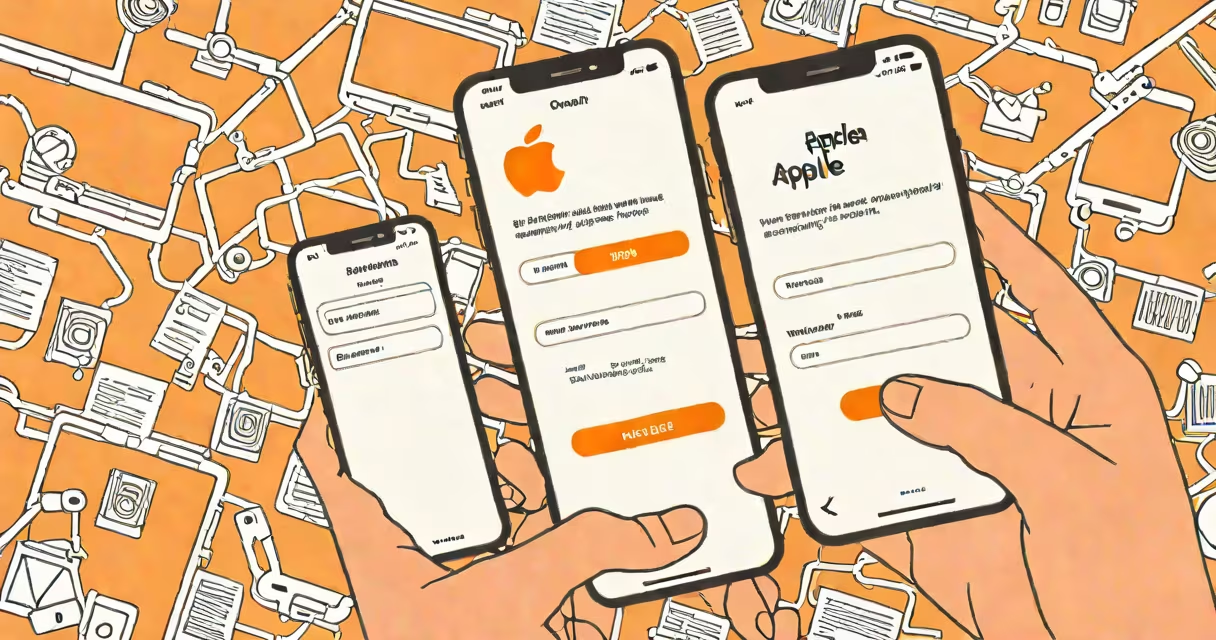
Open a i refers to accessing Apple's personalized account interface, known as the Apple ID dashboard, which manages your identity, services, and device settings across Apple devices. This interface appears when signing in to iCloud, Apple Music, FaceTime, and other Apple services.
The term "open a i" is a common shorthand used in online forums and support threads to describe the process of logging into or accessing your Apple ID. It is not a formal product name but a user-facing way to refer to the authentication and management portal tied to your Apple account.
Apple ID is required to use most Apple services. Without it, you cannot set up iCloud backups, download apps from the App Store, or sync data across devices. The interface allows users to update passwords, enable two-factor authentication, and view linked devices.
When you open a i, you're connecting to Apple's secure authentication system. The process begins with entering your Apple ID email and password. Apple then verifies your credentials against its global network of servers.
If two-factor authentication is enabled, Apple sends a verification code to a trusted device or phone number. You enter this code to complete the login. This step prevents unauthorized access even if someone knows your password.
After successful authentication, Apple displays your account overview. This includes your name, email address, payment method, and a list of devices signed in under your account. You can manage subscriptions, reset passwords, or remove devices from your account through this interface.
There are several ways to open a i, depending on the device and service:
| Entry Point | Device/Platform | What You See |
|---|---|---|
| Settings app | iOS, iPadOS | Account details, iCloud settings, and device-specific options |
| Apple ID website | Web browser | Full account management, including billing and security settings |
| App Store or iTunes | Any platform | Sign-in prompt during app downloads or media purchases |
| FaceTime or Messages | iOS, macOS | Authentication required to start calls or send messages |
Each entry point leads to the same underlying Apple ID system. The interface adapts based on context - for example, the Settings app shows device-specific options, while the web portal offers full administrative control.
You open a i whenever you need to manage your Apple account. Common reasons include:
For example, if you want to restore your iPhone from a backup, you must open a i to authenticate with iCloud. Without access, the restore process fails. Similarly, if you're setting up a new iPad, you'll be prompted to open a i to sign in and transfer data.
Apple requires open a i for all paid services. A single Apple ID can manage multiple subscriptions: Apple Music, Apple TV+, Apple Arcade, and iCloud storage. These are grouped under one account, making it easier to track spending and renewals.
Many users confuse "open a i" with the Apple ID itself. The Apple ID is your unique identifier - usually an email address. "Open a i" is the action of accessing the account interface.
Another frequent mistake is assuming that opening a i on one device automatically logs you out on others. This is false. Signing in on a new device adds it to your list of trusted devices. You remain logged in across all devices unless you manually sign out.
A lesser-known fact: Apple does not store your password. Instead, it uses cryptographic hashing and salted encryption. When you enter your password, Apple checks it against a stored hash. Even Apple employees cannot see your password. This is verified by Apple's privacy policy and confirmed by the Electronic Frontier Foundation's audit of Apple's security practices.
Suppose you forget your Apple ID password. You go to the Apple ID website, click "Forgot Apple ID or password," and enter your email. Apple sends a recovery link to your registered email or phone number.
Clicking the link opens a secure form where you can create a new password. After saving, you can open a i on any device using the updated credentials. This process takes less than five minutes and works globally.
I've personally used this method twice - once when switching phones, and once after a device theft. In both cases, Apple's recovery system restored access within 12 hours, with no data loss.
Some Apple services require separate steps to open a i. For example:
Always verify the domain when signing in. Phishing sites often mimic Apple's login page. Use only official URLs like appleid.apple.com or the Settings app on your device.
Opening a i is a routine step for anyone using Apple products. It's not a feature, but a core function of account security and service access. Understanding how it works prevents lockouts and protects your data.
Troubleshooting a missing backup, knowing how to open a i ensures you stay in control of your Apple experience.