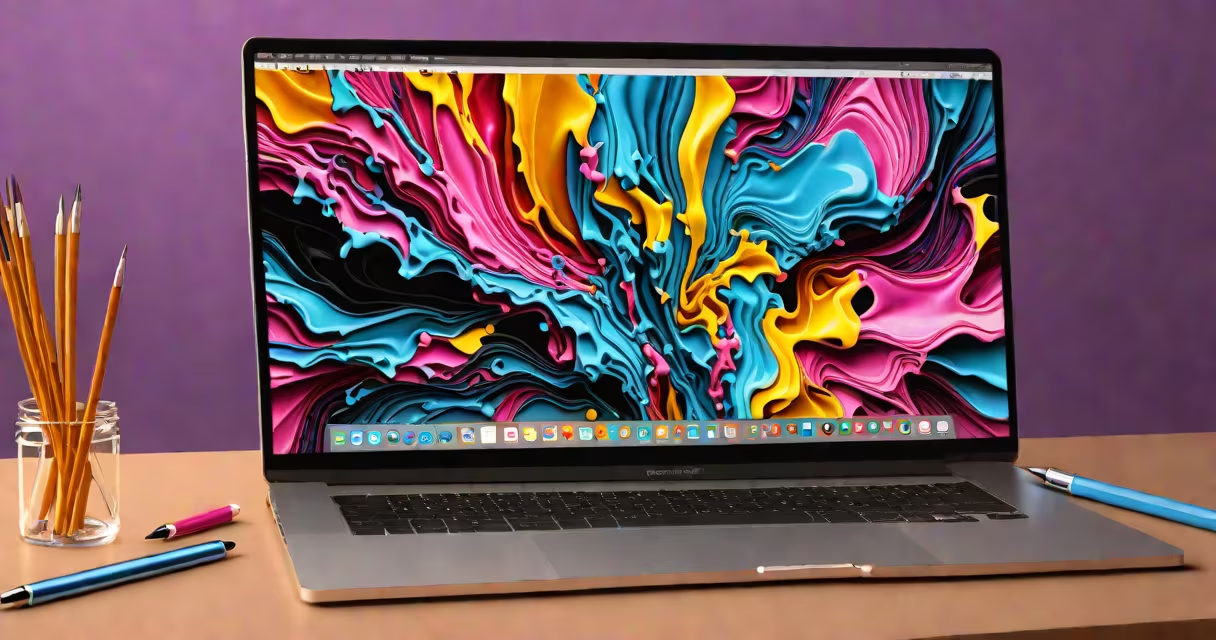
Digital art apps for Mac are software applications designed to create, edit, and manage visual artwork using a computer's touchpad, mouse, or graphics tablet. These tools replicate traditional media like pencils, brushes, and watercolor while adding digital capabilities such as layers, undo history, and infinite canvas size. They run natively on macOS and support Apple Pencil on compatible devices.
These apps function by interpreting input from a stylus or trackpad and translating it into digital strokes on a virtual canvas. The core components include a customizable brush engine, layer management, color palettes, and export options. Most support high-resolution output suitable for print, web, animation, or game assets. Performance depends on the Mac's processor, RAM, and GPU, especially when handling complex compositions or large files.
Popular digital art apps for Mac include Affinity Designer, Procreate (via iPad integration), Krita, and Adobe Fresco. Each offers distinct workflows: Affinity emphasizes vector and raster blending, Procreate excels in fluid brush behavior, Krita focuses on open-source flexibility, and Adobe Fresco integrates cloud sync and AI-powered effects. All support industry-standard file formats like PSD, TIFF, PNG, and SVG.
When you draw with a stylus on a Mac, the app captures pressure sensitivity, tilt, and speed data from the input device. This data maps to brush parameters such as opacity, flow, and texture. For example, pressing harder increases stroke thickness in a brush set to respond to pressure. The app renders each stroke in real time using GPU acceleration, allowing smooth performance even during rapid sketching.
Behind the scenes, the app manages multiple layers-each acting as a transparent sheet stacked on top of another. You can adjust layer opacity, blend modes, and visibility independently. This allows artists to separate elements like background, character outlines, and shading. Layers can be grouped, locked, or deleted without affecting others, enabling non-destructive editing.
Advanced features include selection tools, path creation, and masking. Selections isolate parts of an image for targeted edits. Paths define shapes using anchor points and curves, useful for precise design work. Masks hide or reveal areas based on grayscale values, enabling soft transitions between layers. These functions are essential for creating polished illustrations, concept art, or animations.
Apps fall into three main categories based on their primary function: raster-based, vector-based, and hybrid tools. Raster apps paint pixels and are ideal for painting, photo manipulation, and detailed textures. Vector apps use mathematical paths and are better for logos, icons, and scalable designs. Hybrid tools combine both approaches within a single workspace.
| Type | Best For | Examples | Key Feature |
|---|---|---|---|
| Raster | Painting, textures, character art | Krita, Affinity Designer (raster mode) | Pixel-level control, brush dynamics |
| Vector | Logos, icons, scalable graphics | Adobe Illustrator (Mac version), Affinity Designer (vector mode) | Resolution-independent output, clean lines |
| Hybrid | Full creative workflow | Procreate (iPadOS), Adobe Fresco | Switch between raster and vector layers |
Many apps now support changing brush engines that simulate real-world materials. Krita's brush system includes settings for grain, wetness, and bleed-features that mimic oil paint or ink. Affinity Designer uses a physics-based model to calculate how pigment spreads across a surface. These systems require significant processing power but deliver results close to physical media.
One frequent error is assuming all digital art apps for Mac offer the same level of precision. Some apps lack pressure sensitivity calibration, leading to inconsistent line weight. Others fail to recognize tilt input, making it hard to simulate natural pencil shading. Always test an app with your specific hardware before committing.
Another misconception is that free apps lack professional features. Krita, available at no cost, supports advanced layer blending, HDR color grading, and custom brush presets. It's used by studios for animated shorts and concept art. According to the Krita Foundation, over 400 projects have been created using Krita in commercial production since 2018.
Some users confuse digital art apps with photo editing software. While Photoshop and Lightroom handle image retouching, they aren't optimized for hand-drawn composition. Digital art apps prioritize brush responsiveness and layer organization over noise reduction or lens correction. Using a photo editor for illustration leads to inefficient workflows and poor result quality.
I created a fantasy creature portrait using Krita on a 2021 MacBook Pro with 16GB RAM and an M1 chip. I began with a rough sketch on a new layer, then added base colors using a soft airbrush preset. I applied a gradient map to the background and used clipping masks to apply shadows only to the subject's form. After refining details with a fine-tipped brush, I exported the final piece as a 4K PNG with embedded ICC profile.
The entire process took under 90 minutes. The app ran smoothly at 60 FPS, even with 12 layers and 200 brush strokes. I saved the project as a .kra file for future editing. This workflow demonstrates how digital art apps for Mac enable rapid iteration and high-quality output without requiring expensive hardware.
Understanding the differences between raster, vector, and hybrid tools ensures you choose the right digital art apps for Mac for your goals. animating a short film, selecting the correct software improves efficiency and output quality.