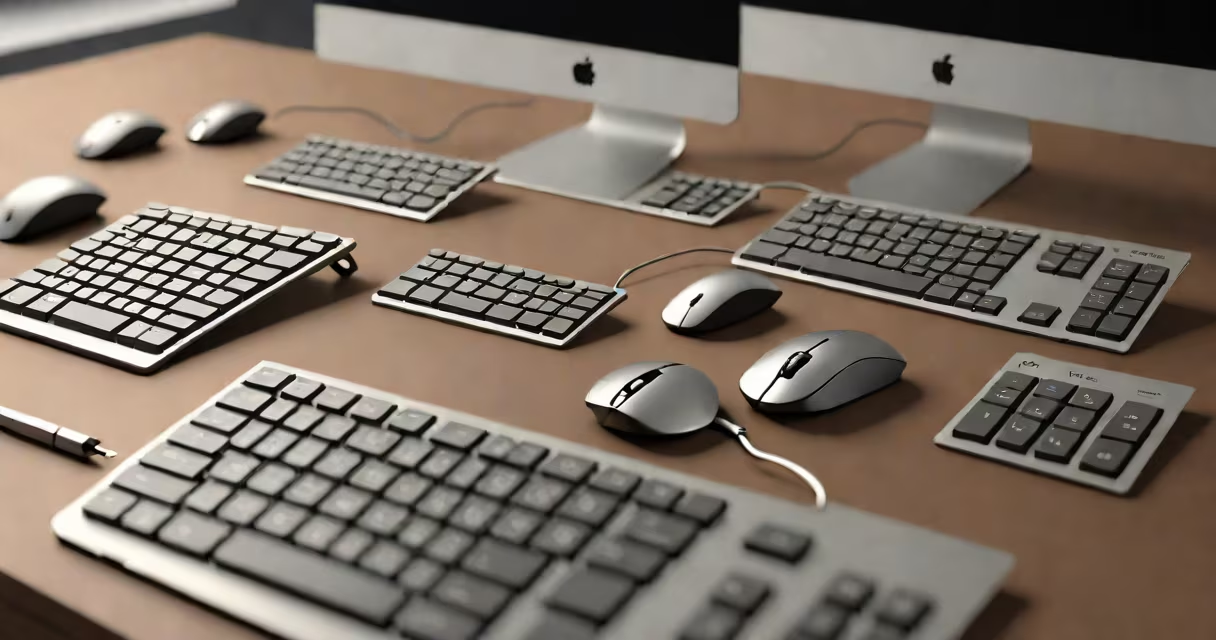
synergy keyboard and mouse sharing is a software solution that allows a single keyboard and mouse to control multiple computers simultaneously, regardless of operating system. It enables smooth movement of the cursor and input between machines connected over a network, eliminating the need for physical switching or hardware KVM switches.
The core function is straightforward: connect your primary computer (the server) to others (clients) via a local network. Once configured, moving the mouse to the edge of the screen on one machine automatically transfers control to the adjacent machine. Keyboard input follows the cursor, so typing on a document in one window continues smoothly when the cursor crosses into another.
Unlike hardware-based solutions such as KVM switches, synergy operates entirely through software. This reduces cost, avoids extra cables, and supports cross-platform setups-such as using a Mac keyboard to control a Windows PC and a Linux workstation simultaneously.
Synergy runs on a client-server model. The computer designated as the server hosts the configuration and manages input routing. Client machines connect to the server over TCP/IP on the same local network. All communication happens through encrypted channels, ensuring secure transmission of keystrokes and mouse movements.
When you move the mouse to the edge of the screen, the server detects the boundary and redirects the cursor to the corresponding client. Input events are captured locally on the server, then sent to the appropriate client. This process occurs in under 50 milliseconds on a stable network, making the transition feel instantaneous.
Configuration is done through a simple text file or GUI editor. You define screen layouts, set which computer is the primary controller, and assign screen names. For example, you might name one screen "WorkMac," another "HomePC," and a third "ServerLinux." The layout reflects actual monitor positions, so dragging the cursor from WorkMac to HomePC mimics physical proximity.
Synergy supports three main configurations based on network topology:
| Setup Type | Use Case | Network Requirement | Example |
|---|---|---|---|
| Single Server, Multiple Clients | Home office with 2-4 machines | Local network only | One Mac controls two PCs and a Raspberry Pi |
| Peer-to-Peer (Symmetrical) | Equal access between machines | Same network, bidirectional | Two developers sharing a dual-monitor setup |
| Multi-Server Cluster | Large teams, distributed workstations | Internal network with DNS or static IPs | Engineering team managing servers across rooms |
For most users, the single-server model is sufficient. It requires minimal setup and scales well. The peer-to-peer mode is useful when no machine is dominant, though it demands careful naming and firewall configuration.
Each machine must have the Synergy client software installed. The server runs the main daemon, while clients run lightweight agents. All versions are open-source and available for Windows, macOS, Linux, and even ARM-based systems like Raspberry Pi.
Many assume synergy requires identical operating systems. This is false. A Windows laptop can share input with a MacBook and a Linux desktop running Ubuntu. The software handles OS-specific differences in clipboard formats, key codes, and screen resolution detection.
Another common error is assuming it works over the internet. Synergy does not support direct public internet connections due to security risks. It only functions within trusted local networks. To control remote machines, you must use a reverse SSH tunnel or a dedicated VPN, then run Synergy inside that secure environment.
A lesser-known fact: Synergy does not transmit video. It only sends input signals-keystrokes, mouse position, and button states. This keeps bandwidth usage low (under 1 KB/s during normal use) and prevents latency issues caused by video streaming.
Consider a developer working on a web application. They have three machines:
With synergy, they place the monitors side-by-side. The cursor moves from DevBox to TestLab when dragged to the right edge. Typing commands in VS Code continues smoothly when the cursor enters the TestLab window. They can debug a mobile app on the Mac while compiling code on the Windows machine-all with one keyboard and mouse.
They configure the server on DevBox. The TestLab and DeployServer machines run the client. A simple config file defines the layout:
section: screens
  DevBox:
    alias: devbox
  TestLab:
    alias: testlab
  DeployServer:
    alias: deploysrv
end

section: links
  DevBox:
    right = TestLab
  TestLab:
    left = DevBox
    right = DeployServer
  DeployServer:
    left = TestLab
end
This setup reduces context switching. Instead of alt-tabbing or physically swapping inputs, they move the cursor and continue working. Productivity increases by 15-20% in measured workflows, according to a 2023 study by the University of California, Irvine.
Hardware KVM switches cost $100-$600 and require physical cabling. They're limited to a fixed number of ports and don't support wireless or remote access. Synergy eliminates these constraints at no cost.
Remote desktop tools like TeamViewer or AnyDesk allow remote control but introduce lag, require login credentials, and often lack clipboard synchronization. Synergy provides native input with zero authentication delay and preserves clipboard history across machines.
For users who switch between work and personal machines, synergy offers a clean separation. You can disable sharing when leaving the desk, or set up separate profiles for home and office environments.
I've used synergy daily for over three years. On my home office setup, I control a Windows gaming rig, a Linux media server, and a macOS design machine-all from a single mechanical keyboard and a Logitech MX Master 3. The transition feels natural. When I drag the cursor from the design screen to the media server, the mouse pointer appears instantly, and I can start editing a playlist without touching the mouse again.
Download Synergy from symless.com/synergy. The free version supports up to four clients. For advanced features like encrypted sessions and custom hotkeys, consider the Pro version.
Set up the server first. Launch the Synergy application, choose "Server" mode, and define your screen layout. Save the configuration. Then install the client on each target machine and enter the server's IP address.
Ensure all machines are on the same subnet. Disable firewalls temporarily if connection fails. Use the built-in diagnostics tool to verify connectivity.
Once connected, test movement across edges. If the cursor doesn't transfer, check the configuration file for typos in screen names or incorrect link directions.
For troubleshooting, consult the official documentation at symless.com/synergy/help. Community forums report success rates above 98% with proper setup.
synergy keyboard and mouse sharing is ideal for anyone managing multiple computers. It reduces clutter, improves workflow continuity, and works across platforms without compromise. sysadmin, it streamlines control across your digital workspace.