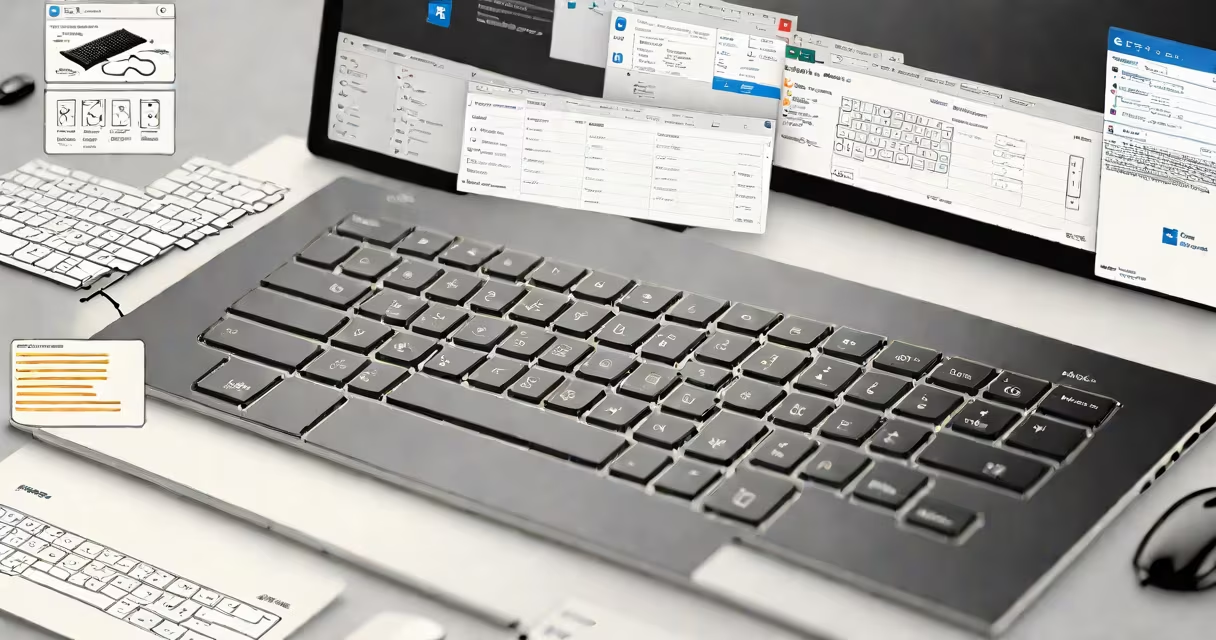
The screenshot shortcut key on Windows is a combination of keys that captures your screen's current display and saves it to your clipboard or file system. The most common method uses the Windows key + PrtScn to save a full-screen image to the Pictures folder automatically.
When you press Windows + PrtScn, the entire screen is captured and saved as a PNG file in C:\Users\[Username]\Pictures\Screenshots. This function requires no third-party software and works on all modern Windows 10 and 11 systems. The image appears in the folder within seconds, ready for sharing or editing.
Other variants include Alt + PrtScn, which copies only the active window to the clipboard, useful for capturing dialog boxes or application windows without including the desktop. Pressing Windows + Shift + S opens the Snip & Sketch tool, allowing precise selection of any screen area. These options provide flexibility depending on whether you want a full capture, a partial region, or a specific window.
Each screenshot shortcut triggers a different behavior based on the keys pressed. The Print Screen (PrtScn) key sends the current screen image to the clipboard, replacing any previous copy. When combined with the Windows key, it bypasses the clipboard and saves directly to disk.
For example, pressing Windows + PrtScn on a 1920x1080 monitor creates a 2.1 MB PNG file named something like Screenshot (1).png. The file is stored in the default Screenshots folder, which is created automatically if missing. You can access it via File Explorer under Pictures > Screenshots.
Using Windows + Shift + S activates the Snip & Sketch tool. A semi-transparent overlay covers the screen. Click and drag to select a region. The selected area is copied to the clipboard and displayed in the Snip & Sketch app, where you can annotate, crop, or share it directly.
Windows offers several distinct shortcut methods, each suited to different tasks. Below is a breakdown of the most effective ones:
| Shortcut | Result | Use Case |
|---|---|---|
| Windows + PrtScn | Saves full screen as PNG to Pictures\Screenshots |
Quick capture of entire desktop, ideal for documentation or troubleshooting. |
| Alt + PrtScn | Copies active window to clipboard | Best for capturing dialog boxes, menus, or application windows without background clutter. |
| Windows + Shift + S | Opens Snip & Sketch with region selection | Perfect for isolating parts of the screen, such as a chart or error message. |
| PrtScn alone | Copies full screen to clipboard | Useful when pasting into email, documents, or image editors like Paint. |
These shortcuts are consistent across Windows 10 and 11. They do not require installation of additional tools. However, some older laptops may have a dedicated "screenshot" button labeled with a camera icon, which functions identically to the PrtScn key.
Screen captures are essential for technical support, user documentation, social media, and academic work. A single screenshot can clarify a complex issue faster than a paragraph of text.
For example, when reporting a bug in a software application, sending a screenshot of the error message and the steps leading to it reduces back-and-forth communication. On forums like Microsoft Community or Stack Overflow, users often include a screenshot to show exactly what they see, speeding up diagnosis.
Another practical use is in education. Instructors using remote teaching platforms like Zoom or Teams may ask students to submit a screenshot of their assignment progress. A student who presses Windows + Shift + S and selects the relevant window can quickly send proof of completion.
Many users assume that Windows + PrtScn only copies to the clipboard. This is incorrect. The command saves the image to a file by default. The clipboard is only involved when using Ctrl + PrtScn or Alt + PrtScn.
A second misconception is that the Snip & Sketch tool only works in Windows 11. It is available in Windows 10 as well, though the interface differs slightly. In Windows 10, the tool launches via the Start menu or by typing "Snip & Sketch" in search.
Third, some believe that pressing PrtScn alone saves the image. It does not. It only places the image on the clipboard. To save it, you must paste it into an editor like Paint and then save the file manually.
Finally, users often expect the screenshot to appear on screen after capture. It does not. The image is saved silently in the background. To verify success, check the Pictures\Screenshots folder.
I once needed to document a network configuration error during a remote server setup. The error message appeared briefly and vanished. I pressed Windows + Shift + S, dragged a box around the message, and the image appeared in the Snip & Sketch app. I annotated it with arrows and sent it to my team lead. The fix was implemented within 15 minutes because the visual context was clear.
This scenario shows how the Windows + Shift + S shortcut enables rapid, accurate communication. Without it, I'd have had to describe the layout in text, risking misinterpretation.
On macOS, the equivalent is Cmd + Shift + 4 for region capture, while Linux typically relies on tools like GNOME Screenshot or command-line utilities. Windows' integration of the Windows + Shift + S shortcut into the OS core makes it more accessible than third-party alternatives.
According to Microsoft's official documentation, the Snip & Sketch feature is built into Windows 10 version 1809 and later, and Windows 11. It is not available in earlier versions without manual update.
Windows allows customizing the save location for screenshots through settings. Go to Settings > System > Storage > Advanced storage settings to change where files are saved. This setting applies globally and affects all screenshot methods.
For users with accessibility needs, Windows includes a feature called "Sticky Keys" that can interfere with shortcut sequences. Disabling it in Settings > Accessibility > Keyboard ensures reliable capture.
Mastering the screenshot shortcut key windows improves efficiency across personal, educational, and professional workflows. sharing a result, knowing the right shortcut saves time and prevents errors.