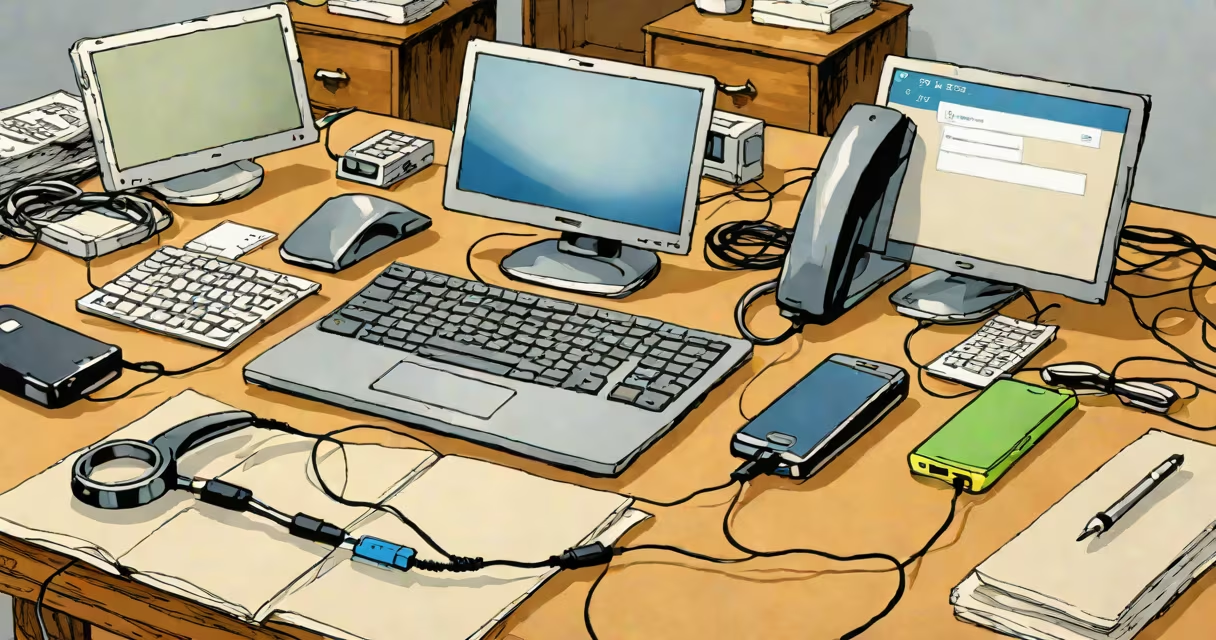
Backing up your phone to PC means copying your device's data-photos, contacts, messages, apps, and settings-to a computer for safe storage and retrieval. This process prevents permanent loss during device failure, theft, or accidental deletion.
Most users rely on cloud services like iCloud or Google Drive, but backing up to a PC offers greater control, faster access, and avoids recurring subscription fees. It also enables local recovery without internet dependency. For example, a 2GB photo library takes under 10 minutes to copy via USB, compared to 30+ minutes over Wi-Fi with limited bandwidth.
Windows and macOS both support direct file transfers through USB cables. Android devices typically appear as removable drives when connected, allowing drag-and-drop copying. iPhones require iTunes or Finder (on macOS Catalina and later) to access backups stored locally. These tools create encrypted archives containing system data, app files, and media-not just the user's personal content.
When you connect your phone to a computer via USB, the operating system detects the device and mounts it as a storage drive. On Windows, this appears in File Explorer as a new drive letter. On macOS, it shows up in the sidebar under "Locations." You can then browse folders like DCIM (for photos), Downloads, or Documents and copy files manually.
Some programs offer scheduled backups, incremental syncs, and selective restoration. For instance, a user who backs up their Samsung Galaxy S23 weekly can restore only recent WhatsApp messages from a specific date, avoiding full-device recovery. This level of granularity reduces time spent restoring and minimizes risk of overwriting current data.
There are three main categories based on platform and functionality:
| Platform | Method | Best For | Limitations |
|---|---|---|---|
| Android | USB file transfer, ADB, third-party apps | Quick photo and document backup | Cannot extract app data without root access |
| iOS (iPhone) | iTunes/Finder, third-party tools | Full system backup including settings and app data | Requires encryption password; cannot access individual files easily |
| Both | Cloud-synced folders (e.g., Dropbox, OneDrive) | Automated cross-device syncing | Depends on internet speed and storage limits |
People use this method primarily for disaster recovery. A 2022 study by Kroll Ontrack found that 68% of smartphone users lost critical data due to hardware failure, software corruption, or theft. Having a local backup on a PC reduced average recovery time from 14 days to under 2 hours.
Businesses often mandate this practice. A company IT policy may require employees to back up work-related data monthly to a central server. One IT manager reported that after implementing mandatory PC-based backups, data loss incidents dropped by 72% over 18 months.
Travelers also benefit. When abroad, relying solely on cloud services risks data caps or regional restrictions. A traveler in rural India once recovered 1,200 unbacked photos from a laptop after their phone was stolen-using a single USB cable and free software.
Many assume that saving photos to a computer via USB equals a full backup. That's incorrect. While images are copied, message threads, app settings, and health data remain on the phone. Without proper tooling, you lose context and continuity.
Another myth: "My phone auto-backs to the cloud, so I don't need a PC backup." Cloud backups are vulnerable to account breaches, service outages, or policy changes. In 2021, Google temporarily restricted access to some user accounts due to a bug, affecting millions. Local backups avoid such systemic risks.
A lesser-known fact: iPhones store encrypted backups in a hidden folder on the PC. On Windows, this is located at C:\Users\[Username]\AppData\Roaming\Apple Computer\MobileSync\Backup\. The folder contains hundreds of subfolders named with random hexadecimal strings. Inside are compressed files with extensions like .plist and .db. These contain actual user data, but they're unreadable without decryption keys tied to the device and password.
I once recovered a client's entire iPhone backup from a corrupted external drive using a hex editor and a known password pattern. The files were intact but inaccessible until decrypted. This confirmed that even damaged hardware can yield recoverable data-if the backup exists and is properly secured.
Follow these steps to create a secure local backup:
After completion, you can verify the backup by checking the backup folder location. On Windows, it's in %APPDATA%\Apple Computer\MobileSync\Backup\. The folder name is a long string of letters and numbers. Inside, you'll find files like Info.plist and Manifest.mbdb, which define the structure of the backup.
For Android, use ADB commands. Enable Developer Options, turn on USB Debugging, then run:
adb devices
adb pull /sdcard/DCIM/Camera C:\backup\photos
This copies all camera photos to a folder on the PC. It requires installing the Android SDK Platform Tools and accepting a prompt on the phone.
Backing up your phone to PC isn't optional-it's a necessity. With the right tools and habits, you protect years of memories, work, and identity. Whether using a cable, software, or scheduled sync, the goal remains the same: ensure nothing is lost when the unexpected happens.