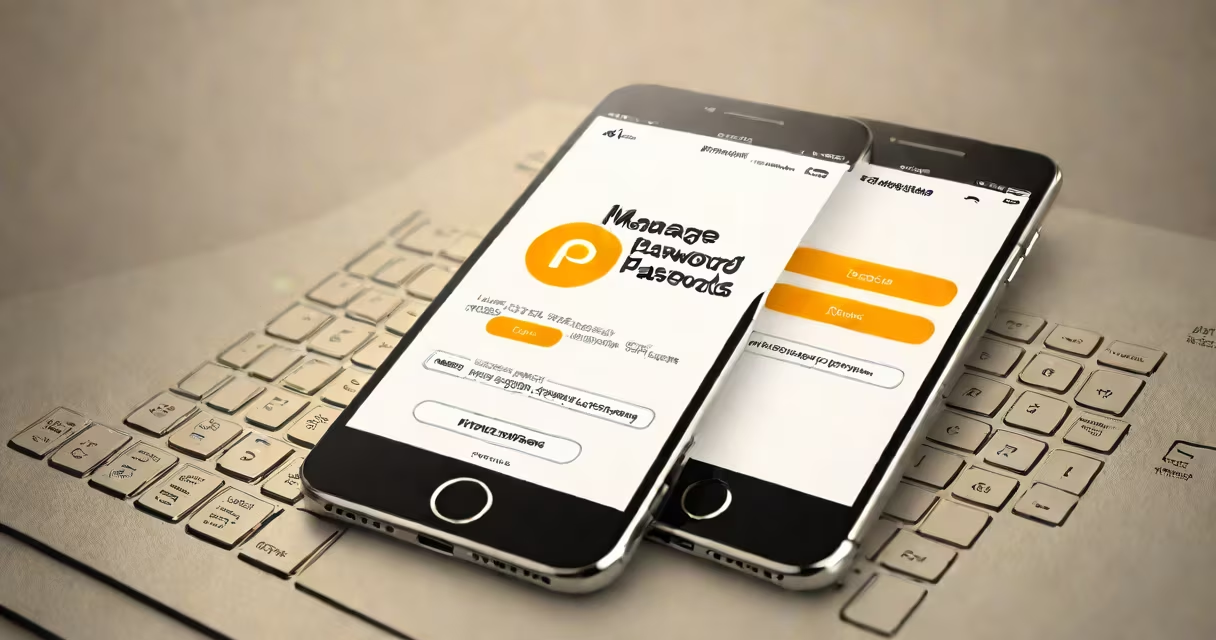
Manage your passwords using a centralized, encrypted tool that stores unique, complex credentials for every online account. This prevents reuse, reduces breach risk, and enables quick, secure logins across devices.
When you manage your passwords, you stop relying on memory, weak combinations like "password123," or repeated passwords across sites. Instead, a password manager generates and stores a distinct, high-entropy password for each service-typically 16+ characters with uppercase, lowercase, numbers, and symbols. These are protected behind a master password, which you must remember but only enter once per session.
Most managers use AES-256 encryption, the same standard used by governments and financial institutions. Data is stored locally on your device or in encrypted cloud sync, depending on your settings. When you visit a site, the manager auto-fills the correct credentials-no typing, no copying, no risk of keyloggers capturing input.
A password manager acts as a digital vault. You create one strong master password-ideally a passphrase with 12+ characters, such as "BlueSky!Falls@2024"-and never enter it manually after setup. All other passwords are generated, encrypted, and stored securely.
When you visit a website or app, the manager detects the login field and automatically fills in the correct username and password. On mobile, this often happens via a biometric enable (fingerprint or face scan). On desktop, it may trigger through a browser extension or system-wide autofill.
Behind the scenes, the manager uses cryptographic hashing to verify your master password without storing it. Even if the database is compromised, attackers cannot reverse-engineer passwords without cracking the master key-a process estimated to take billions of years with current computing power (NIST Special Publication 800-63B).
There are two primary models: local-only and cloud-synced. Local tools store data only on your device, offering maximum control but limiting access across multiple devices. Cloud-based systems sync data across phones, tablets, and computers-but require trust in the provider's security practices.
| Type | Sync Across Devices | Offline Access | Best For |
|---|---|---|---|
| Local-only (e.g., Bitwarden Free) | No | Yes | Users prioritizing privacy over convenience |
| Cloud-synced (e.g., 1Password, Dashlane) | Yes | Partial (requires sync) | People who switch between devices daily |
Some managers offer two-factor authentication (2FA) integration, allowing you to enable backup codes or authenticator apps. Others support emergency access features-designated contacts can retrieve your vault if you're incapacitated. These are not optional extras; they're critical for long-term resilience.
Reusing passwords is the #1 cause of account takeovers. A 2023 report by Google found that 65% of users repeat passwords across sites-even among those who consider themselves security-conscious (Google Security Blog). If one site leaks data, attackers test the same credentials on banking, email, and social media platforms.
Consider the 2021 LinkedIn breach: 700 million records were exposed, including usernames and hashed passwords. Many users had reused their LinkedIn password on Gmail accounts. Hackers exploited this pattern to gain access to thousands of email inboxes.
Using a password manager eliminates this risk. Each account gets a unique, randomly generated password. Even if one site is compromised, others remain safe. The average user manages 100+ online accounts-managing them manually is statistically impossible without error.
Many people think password managers are dangerous because they "store all your passwords in one place." This is backwards. The manager doesn't store passwords in plaintext-it encrypts them. The danger lies in choosing a weak master password or enabling insecure sync options.
Another myth: "I don't need a password manager because I'm careful." But human memory fails under pressure. Studies show people forget passwords within 3 months of creation (Psychology Today). Even tech-savvy individuals fall victim to phishing attacks that mimic login pages. A manager blocks these by verifying URLs before auto-filling.
Some assume free tools are less secure. While premium services offer advanced features like dark web monitoring, free versions from reputable developers (like Bitwarden or KeePass) meet industry standards. The core encryption remains identical.
Set up Bitwarden on your phone and laptop in under 10 minutes:
After setup, you'll see a green lock icon in your browser. When logging into a site, the manager fills the correct credentials automatically. If a site doesn't support autofill, you can copy the password with a single tap.
I've used Bitwarden since 2020. After switching from password reuse, my account recovery requests dropped from monthly to zero. I no longer panic when a site announces a data leak-my other accounts are unaffected.
Never store passwords in unencrypted files, notes apps, or spreadsheets. These are easily accessed by malware or unauthorized users. Avoid browser password saving unless you're on a locked personal device-browsers lack end-to-end encryption and can be hijacked via extensions.
Also avoid password managers that don't support open standards. Tools that lock your data into proprietary formats make migration difficult. Look for ones that export in standard formats like CSV or JSON.
Finally, never share your master password-even with family members. If you must grant access, use the emergency access feature built into trusted managers.
Managing your passwords isn't about complexity-it's about consistency. A single strong master password protects hundreds of accounts. The time spent setting up a manager pays off in reduced stress, fewer breaches, and faster logins.
Security isn't a one-time fix. Manage your passwords regularly-update them annually, audit access logs, and stay informed about new threats. The goal isn't perfection. It's progress.