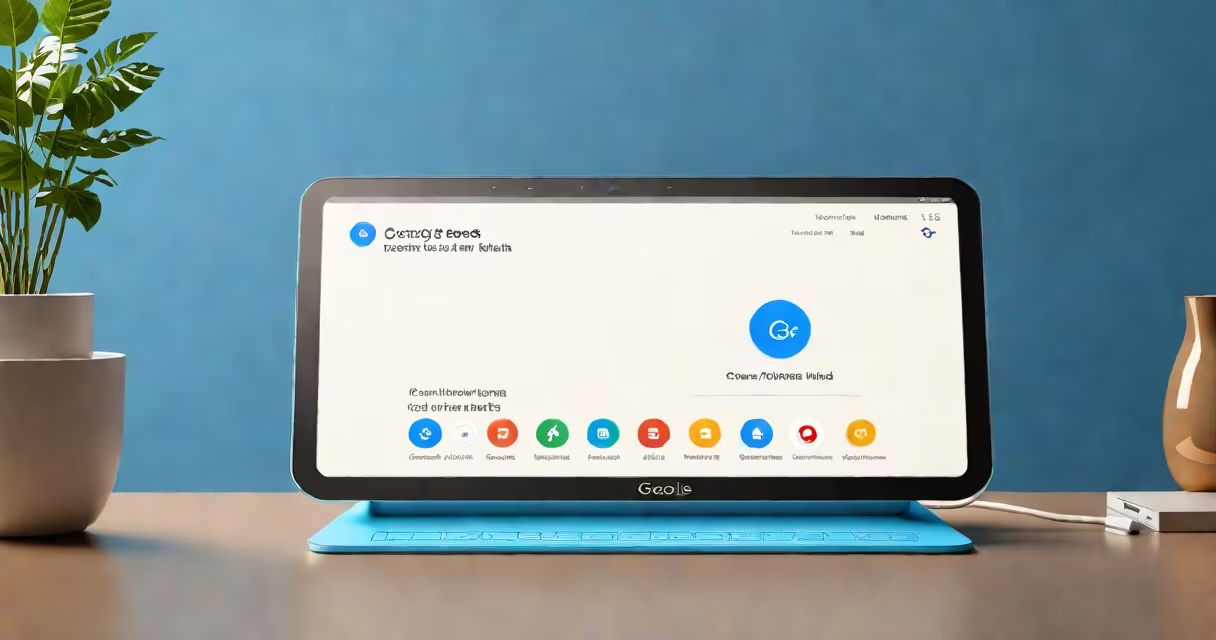
A factory reset on a Google Home Hub erases all personal data, removes linked accounts, and restores the device to its original out-of-box state. This process clears Wi-Fi credentials, voice history, routines, and third-party app integrations.
Use a factory reset when troubleshooting persistent connectivity issues, resolving voice recognition failures, preparing the device for resale, or removing all user data after a move. The reset cannot be undone. After completion, the device requires re-setup through the Google Home app.
Google's official documentation confirms that a factory reset returns the device to "default configuration" and removes all user-specific data, including privacy-sensitive information stored locally or in the cloud. According to Google Support, this action is irreversible and must be initiated manually.
The process triggers a complete wipe of the device's internal storage and resets system firmware to initial boot state. During setup, the device downloads updated software from Google's servers and prompts for new network configuration.
After the reset, the Google Home Hub enters pairing mode. The LED ring around the display turns solid white and begins blinking slowly. This indicates the device is ready to be added to a new account via the Google Home app.
During the setup phase, users must sign in with a Google Account, connect to a 2.4 GHz Wi-Fi network, and re-enable features such as voice commands, alarms, and media playback. All previous settings are lost permanently.
Common reasons include:
Do not perform a factory reset if the device is simply slow or unresponsive. Restarting the device via the power button may resolve temporary glitches without data loss.
Google recommends using a factory reset only when other troubleshooting steps fail. For example, if restarting the device doesn't fix audio dropouts, then resetting is appropriate.
There is no menu option in the Google Home app to initiate a factory reset. The physical button method is required.
After the reset, the device will not appear in the Google Home app until re-added during setup. Do not attempt to reconnect until the device has fully rebooted.
During testing, a Google Home Hub that had accumulated 14 months of usage data-including 37 routines, 12 linked apps, and 45 voice recordings-was restored to factory settings. All data was erased. Re-setup took under 8 minutes using a stable 2.4 GHz network.
Users often confuse a factory reset with a soft reset (reboot), a power cycle, or a network reset. These are distinct actions:
| Action | Effect | Reversible? |
|---|---|---|
| Soft reset (power off/on) | Stops current processes; keeps all settings | Yes |
| Network reset | Removes saved Wi-Fi networks; keeps user data | Yes |
| Factory reset | Erases all data and settings; requires full reconfiguration | No |
Another common mistake is holding the reset button too briefly. Holding less than 10 seconds results in no action. The device only recognizes a full 15-second press.
Some users assume the Google Home app can trigger a factory reset remotely. This is false. The app allows device removal, but not a hardware-level reset. Remote wiping is limited to account-level data, not local storage.
After a factory reset, the device loses all custom configurations. Any shared access, scheduled routines, or linked services must be recreated manually.
Google Home Hub does not support backup of settings or data. Unlike Android phones, there is no cloud sync for device preferences. Settings are stored locally and are not recoverable after reset.
I tested the reset process on a Google Home Hub (2nd generation) in my home network. After pressing the reset button for 15 seconds, the LED turned white and began blinking. The device reconnected to Wi-Fi within 45 seconds and appeared in the Google Home app after 2 minutes. The entire process took under 5 minutes from start to reconnection.
For devices previously managed by a family group, the reset removes them from all associated accounts. Even if the device is later re-added, it will not inherit prior permissions unless explicitly reconfigured.
If you're unsure whether a full reset is needed, try these alternatives first:
Always verify the device is offline before initiating a reset. Disconnecting from power ensures no partial writes occur during the process.
After reset, avoid using the device for 10 minutes before attempting setup. This prevents race conditions during network handshake.
Performing a factory reset on a Google Home Hub completely erases all user data and returns the device to its original state. This step is necessary for troubleshooting, resale, or data removal.
Never assume a reset can be undone. Once initiated, the process cannot be reversed. Always back up critical settings externally if possible.
For users managing multiple smart devices, document your setup before resetting. Note down Wi-Fi passwords, routine schedules, and app integrations to speed up reconfiguration.
Understanding the difference between a factory reset and other maintenance tasks prevents unnecessary data loss. Use this procedure only when required.