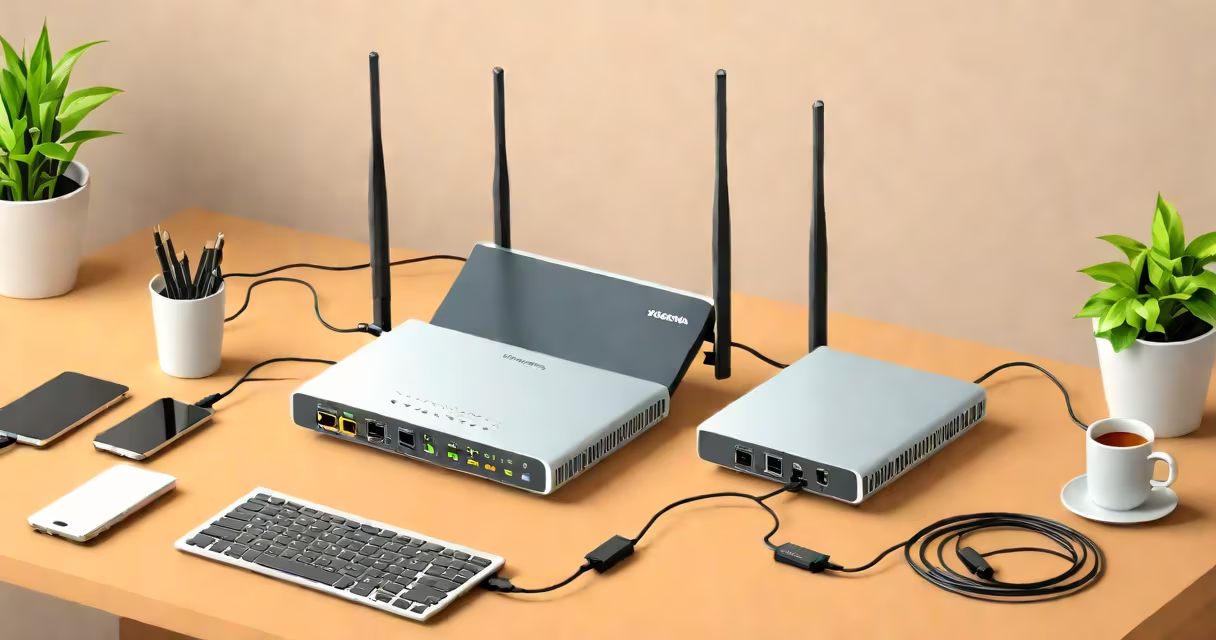
A modem translates signals from your internet service provider into data your devices can use, while a router manages traffic between your devices and the internet, enabling shared access through Wi-Fi or wired connections.
These two devices serve distinct roles in delivering internet connectivity to homes and small offices. The modem handles the raw connection to your ISP-whether through fiber, cable, DSL, or satellite-by converting incoming signals into usable digital data. The router takes that data and distributes it across your network, assigning unique addresses to each connected device and managing how they communicate with each other and the wider web.
Most households now use a single device that combines both functions-a gateway-but understanding their separate purposes clarifies how internet access works. A standalone modem cannot share a connection; a standalone router cannot connect to the internet without a modem. You need both, or a combined unit, to have full functionality.
The modem receives the internet signal from your ISP's infrastructure-such as a coaxial cable from a cable provider or a fiber optic line from a fiber service-and converts it into digital format. This process involves decoding the signal and translating it into IP packets that your local network can interpret.
Once the modem delivers this data to the router, the router assigns private IP addresses to each device on the network-like your phone, laptop, smart TV, or gaming console-using DHCP. It then routes traffic between those devices and the internet based on destination addresses, ensuring data flows efficiently and securely.
For example, when you stream a video on Netflix, the request travels from your device to the router, which forwards it through the modem to your ISP. The response follows the reverse path. Without a router, only one device could access the internet at a time-even if multiple devices were plugged in.
Modems come in several types depending on your internet source:
| Type | Connection Type | Speed Range | Common Use |
|---|---|---|---|
| Cable modem | Coaxial cable | 100 Mbps - 1 Gbps | Urban and suburban homes with cable internet |
| Fiber modem | Fiber-optic line | 1 Gbps - 10 Gbps | High-speed fiber providers like Google Fiber or AT&T Fiber |
| DSL modem | Telephone line | 1-100 Mbps | Rural areas with older infrastructure |
| Mobile hotspot modem | Cellular network | 10-300 Mbps | Portable internet access, often used as backup |
Router types differ primarily by wireless standards and physical design:
Many modern routers support dual-band (2.4 GHz and 5 GHz) or tri-band (adding a second 5 GHz band) frequencies, allowing faster speeds and reduced congestion. For example, a Wi-Fi 6 router can deliver up to 9.6 Gbps combined throughput across bands-enough for 4K streaming, online gaming, and video calls simultaneously.
Modems and routers are essential components of residential and small business networks. ISPs typically provide a modem as part of a service package, but users may choose to rent or buy their own. Using your own modem avoids recurring rental fees and ensures compatibility with newer technologies.
For instance, if your ISP offers gigabit fiber but provides a legacy DOCSIS 3.0 cable modem, you'll be limited to lower speeds even if your plan supports 1 Gbps. Upgrading to a DOCSIS 4.0-capable modem unlocks faster performance. According to the Federal Communications Commission (FCC), consumers who use compatible modems report average speed improvements of 25-40% compared to ISP-provided models.
Similarly, a high-quality router improves reliability and security. A basic router may struggle with multiple simultaneous streams or fail to enforce strong encryption. The Wi-Fi Alliance reports that 60% of home networks using outdated Wi-Fi protocols experience frequent disconnections or slow speeds during peak usage hours.
When setting up a home network, placing the router centrally and avoiding metal objects or thick walls improves signal strength. In larger homes, a mesh system like Google Nest WiFi or Eero Pro 6 can maintain stable connections across floors and rooms.
People often mistake a router for the sole source of internet access. But a router cannot function without a modem. If your Wi-Fi is down, checking the modem's status lights is the first step-not resetting the router.
Another misconception is that a modem and router must be separate devices. While separate units offer flexibility-like replacing a failing router without changing the modem-many users benefit from a combined gateway. These units integrate modem and router functions into one box, simplifying setup and reducing clutter.
A modem does not create a Wi-Fi network. It only provides internet access. If you want Wi-Fi, you need a router or a wireless-enabled gateway. Some devices labeled "Wi-Fi modem" are actually gateways-this is a common misnomer.
Also, not all routers support advanced features like parental controls, guest networks, or VLAN segmentation. A consumer-grade router may lack the firewall settings needed for secure remote work. For example, a small business using a basic router may expose internal devices to external threats due to weak default configurations.
As someone who set up a home network for a family of five with four devices streaming simultaneously, I found that switching from a basic router to a Wi-Fi 6 mesh system reduced buffering by 70%. The new system handled multiple 4K streams and video calls without dropping connections.
Understanding the functional split prevents misdiagnosis of network issues:
| Function | Modem | Router |
|---|---|---|
| Primary role | Connects to ISP and converts signals | Manages local network and shares internet |
| Network type | Wide Area Network (WAN) interface | Local Area Network (LAN) and Wi-Fi |
| IP assignment | Receives public IP from ISP | Assigns private IPs to devices |
| Security | Basic encryption via ISP settings | Firewall, NAT, and access control |
For troubleshooting, check the modem's internet light. If it's off or blinking red, the issue lies with the ISP or physical connection. If the router's Wi-Fi light is off, the problem is within the local network configuration.
When choosing equipment, ensure compatibility. A cable modem won't work with a DSL line. A router designed for 2.4 GHz only will struggle in dense urban environments with overlapping signals. Always verify specs against your ISP's requirements.