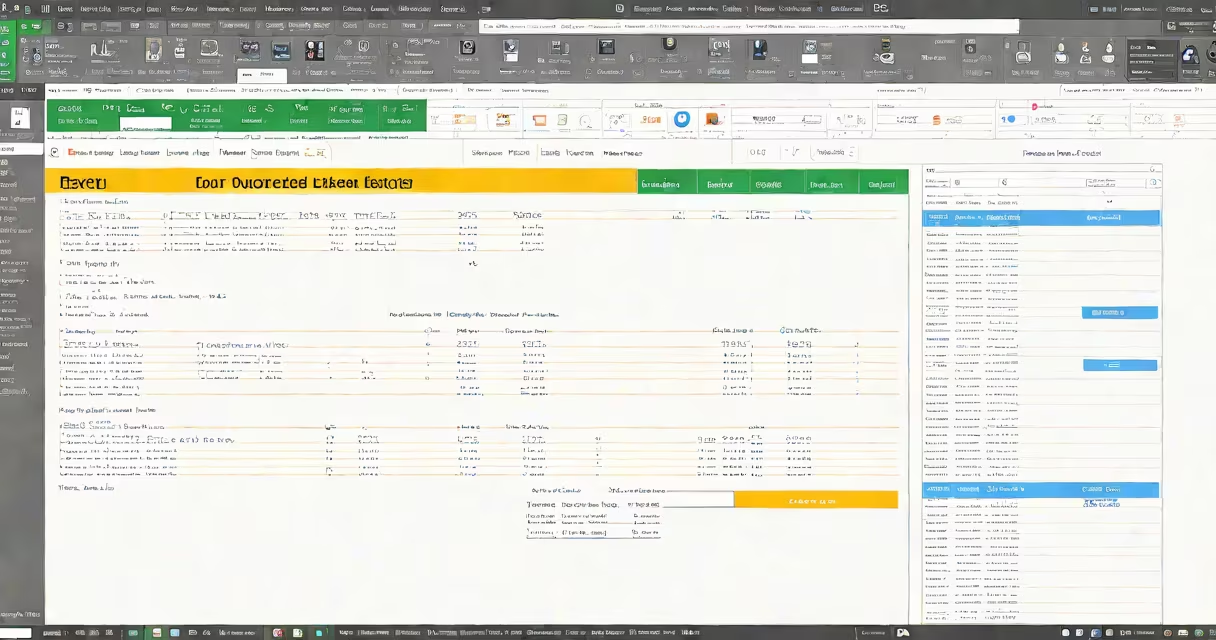
A dropdown list in Excel is a data validation tool that limits user input to a predefined set of choices, reducing errors and standardizing data entry. It appears as a small arrow in a cell, allowing selection from a list rather than free typing.
When you create a dropdown list, Excel enforces the selected values. This prevents typos, inconsistent formatting, and invalid entries-critical in shared workbooks or data collection forms. For example, a project tracker might use a dropdown list with options like "Not Started," "In Progress," "Completed," or "On Hold."
Two primary methods build dropdown lists: Data Validation and Form Controls. Data Validation is simpler and ideal for basic lists. Form Controls offer interactive features like checkboxes and sliders but require more setup. The choice affects usability, especially in changing or collaborative environments.
Excel's dropdown list functionality operates through cell-level constraints. When you define a list via Data Validation, Excel checks every input against the allowed values. If a user types something not in the list, Excel displays an error message unless you disable this behavior.
The process begins by selecting a cell or range. Go to the Data tab, click Data Validation, then choose "List" under Allow. Enter your options separated by commas (e.g., "Red, Blue, Green") or reference a range of cells containing the options (e.g., $A$1:$A$5).
Once applied, the cell shows a downward arrow. Clicking it reveals the list. Users can select an option using the mouse or keyboard arrows. The selected value appears in the cell, and Excel stores it as text or number depending on the source data.
There are two distinct approaches to creating dropdown lists, each suited to different tasks:
| Method | Best For | Setup Complexity | Customization Options |
|---|---|---|---|
| Data Validation | Standardized data entry, reports, forms | Low | Simple list, error messages, changing ranges |
| Form Controls (e.g., ComboBox) | Interactive dashboards, user interfaces | High | Custom styling, event handling, integration with macros |
Data Validation is sufficient for most users. It's accessible, requires no VBA, and works across all Excel versions. You can even link the list to another sheet or external data source using named ranges.
Form Controls, available under the Developer tab, offer richer interactivity. A ComboBox control allows users to type and filter choices. These are often used in custom user forms or automated workflows. However, they're less visible to casual users and require enabling the Developer tab.
One common mistake is confusing Data Validation with conditional formatting. Conditional formatting changes cell appearance based on values but doesn't restrict input. A dropdown list prevents invalid entries; conditional formatting highlights them after entry.
Businesses use dropdown lists to standardize reporting. A sales team might track customer status with options like "New Lead," "Contacted," "Demo Scheduled," "Won," or "Lost." This ensures consistency across regional teams and simplifies pivot table analysis.
In HR, a timesheet template uses a dropdown list for "Project Code" with values pulled from a master list on a separate sheet. This avoids misspellings like "Proj1" or "Projet" and maintains audit trails.
For a fully worked example: Suppose you have a list of departments in cells B1:B6: Sales, Marketing, Finance, IT, HR, Operations. To create a dropdown list in cell D2:
=Sheet1!$B$1:$B$6.Now, D2 shows a dropdown with those six department names. Any attempt to type "Admin" triggers an error unless you uncheck "Ignore blank" or adjust the settings.
One non-obvious detail: Excel treats dropdown selections as text, even if the source range contains numbers. If your list includes "100," "200," "300," and you use them in formulas, Excel may treat them as text strings unless converted with VALUE().
Many assume dropdown lists prevent all data entry errors. They don't. If a user copies and pastes data from another source, Excel doesn't validate pasted content. A copied row with "Invalid Status" won't trigger a warning unless the entire range is re-validated.
Another misconception: that dropdown lists are only for static data. You can make them changing using named ranges and OFFSET or INDEX functions. For example, a list of products can update automatically when new items are added to a database sheet.
I once built a client intake form using dropdown lists tied to a live inventory database. After adding a new product, the dropdown list updated instantly-no manual editing required. This saved hours of maintenance and eliminated mismatches between the form and backend system.
Microsoft's official documentation confirms that Data Validation lists support up to 255 characters per item and allow nested lists when combined with changing arrays in newer Excel versions (Microsoft Support). Google Sheets offers similar functionality, but Excel's implementation is more solid for enterprise use.
For advanced scenarios, combining dropdown lists with VBA macros enables real-time feedback, auto-population of related fields, or access control based on user roles. But for most purposes, the built-in tools suffice.
Understanding how to use a dropdown list in Excel improves data integrity, speeds up data entry, and reduces time spent cleaning up inconsistent inputs. Whether managing inventory, tracking projects, or processing orders, this feature streamlines workflows.