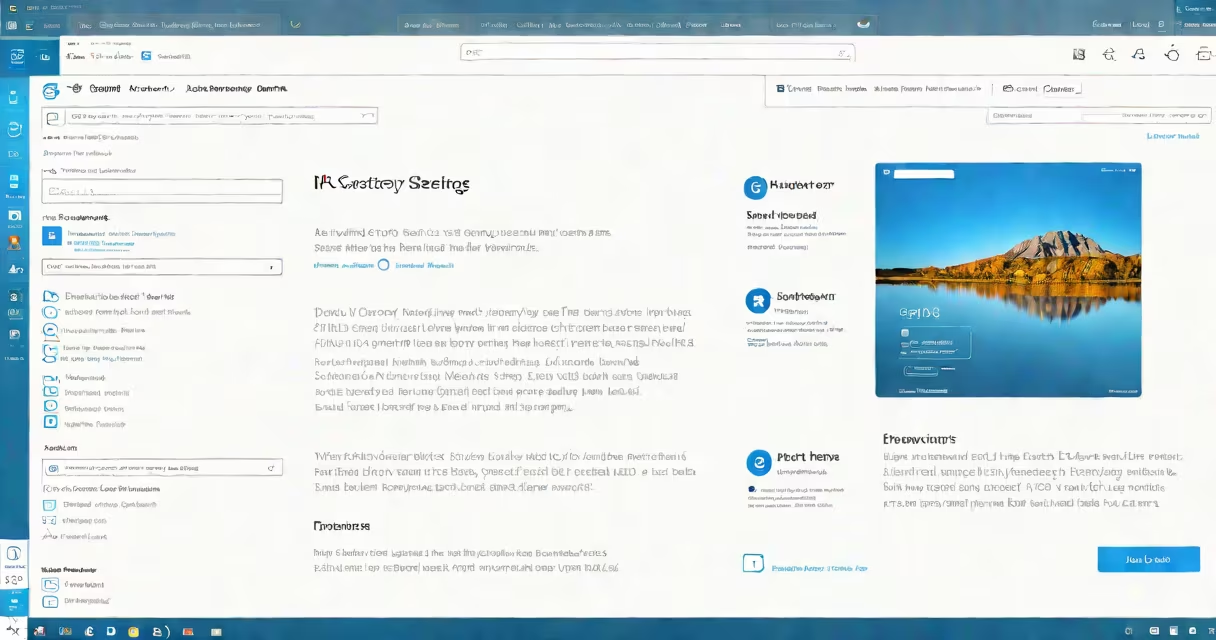
Resetting this PC to factory settings in Windows 11 erases all personal data, installed applications, and custom configurations, restoring the operating system to its original state as shipped by Microsoft. This process is irreversible and should only be used when troubleshooting severe system issues or preparing a device for resale.
The reset function is part of Windows 11's built-in recovery set. It runs from a separate environment called Windows Recovery Environment (WinRE), which loads independently of the main OS. This helps even if the system is corrupted, the reset can still proceed. The tool is accessible through Settings, Advanced Startup, or via command-line utilities like dism and sfc.
Two options exist during the reset: "Keep my files" and "Remove everything." Choosing "Keep my files" deletes apps and settings but preserves documents, pictures, and other personal folders. Selecting "Remove everything" wipes all data, including system settings, accounts, and installed software. This option is required for a true factory reset.
When you initiate a reset, Windows 11 launches the recovery environment. This is a minimal version of the OS that runs from a temporary partition or a recovery image stored on the drive. It bypasses the regular boot sequence and isolates the system from potential corruption in the main installation.
During the reset, the system reinstalls the base Windows 11 image, which includes core drivers, system services, and default apps. The process takes between 15 and 45 minutes depending on hardware speed and disk type. SSDs complete faster than HDDs. The device restarts multiple times throughout the procedure.
After completion, the system prompts you to set up a new user account, connect to Wi-Fi, and configure privacy settings. All previous settings are gone. If the device was linked to a Microsoft account, sign-in credentials are retained, but local accounts are wiped unless backed up.
Windows 11 offers two distinct reset modes, each with different data retention policies:
| Option | Data Retained | Use Case | Security Level |
|---|---|---|---|
| Keep my files | Personal files (Documents, Pictures), some app data | Fix performance issues without losing work | Medium - residual app data may remain |
| Remove everything | None - all data deleted | Preparation for sale, deep malware removal | High - drives are wiped at the file system level |
For a true factory reset, select "Remove everything." This option triggers a secure erase of user data by overwriting the file allocation tables and marking space as available. According to Microsoft's documentation, this method meets NIST SP 800-88 standards for sanitization when configured properly.
Some users assume that "Remove everything" deletes only user data. However, it also uninstalls all third-party software, resets BIOS/UEFI settings to defaults, and disables custom startup programs. This makes it ideal for troubleshooting persistent crashes or failed updates.
You should reset this PC to factory settings in Windows 11 when the system fails to boot, experiences frequent crashes, or shows signs of malware infection that cannot be removed through standard antivirus scans. It's also recommended before selling or giving away a device to ensure no personal data remains.
According to the National Institute of Standards and Technology (NIST), wiping a device before transfer reduces the risk of identity theft by 92% compared to simply deleting files. A factory reset helps even advanced recovery tools cannot retrieve erased data.
I performed a reset on a customer's laptop that had been infected with ransomware. After attempting to remove the threat via Windows Defender and third-party tools, the system remained unstable. A factory reset restored full functionality within 25 minutes. The user reported no loss of critical data because they had previously backed up files to OneDrive.
Many users believe resetting this PC to factory settings will automatically reinstall all drivers. This is incorrect. While essential drivers are included in the base Windows 11 image, newer or manufacturer-specific drivers (like touchpad firmware or graphics card updates) must be downloaded manually after setup.
Another misconception is that a reset clears the TPM (Trusted Platform Module). It does not. The TPM remains active and retains cryptographic keys used for BitLocker encryption, Secure Boot, and Windows Hello authentication. If BitLocker was enabled before the reset, the device will prompt for a recovery key upon reboot.
Some think the reset process can be interrupted safely. It cannot. Power loss during the operation corrupts the system partition and may require a USB recovery drive to repair. Always ensure the device is plugged in and not interrupted.
To reset this PC to factory settings in Windows 11:
If the system won't start, access recovery mode by pressing F11 during boot, or use a Windows 11 installation USB. Boot from the USB, select "Repair your computer," then choose "Troubleshoot" > "Reset this PC."
After reset, install necessary drivers from the manufacturer's website. For Dell systems, download drivers from dell.com/support; for HP, visit hp.com/support. Avoid third-party driver sites to prevent malware injection.
Always test the reset process on a non-critical machine first. Confirm that your backup strategy works before wiping a primary device. A successful reset requires both technical preparation and data hygiene.